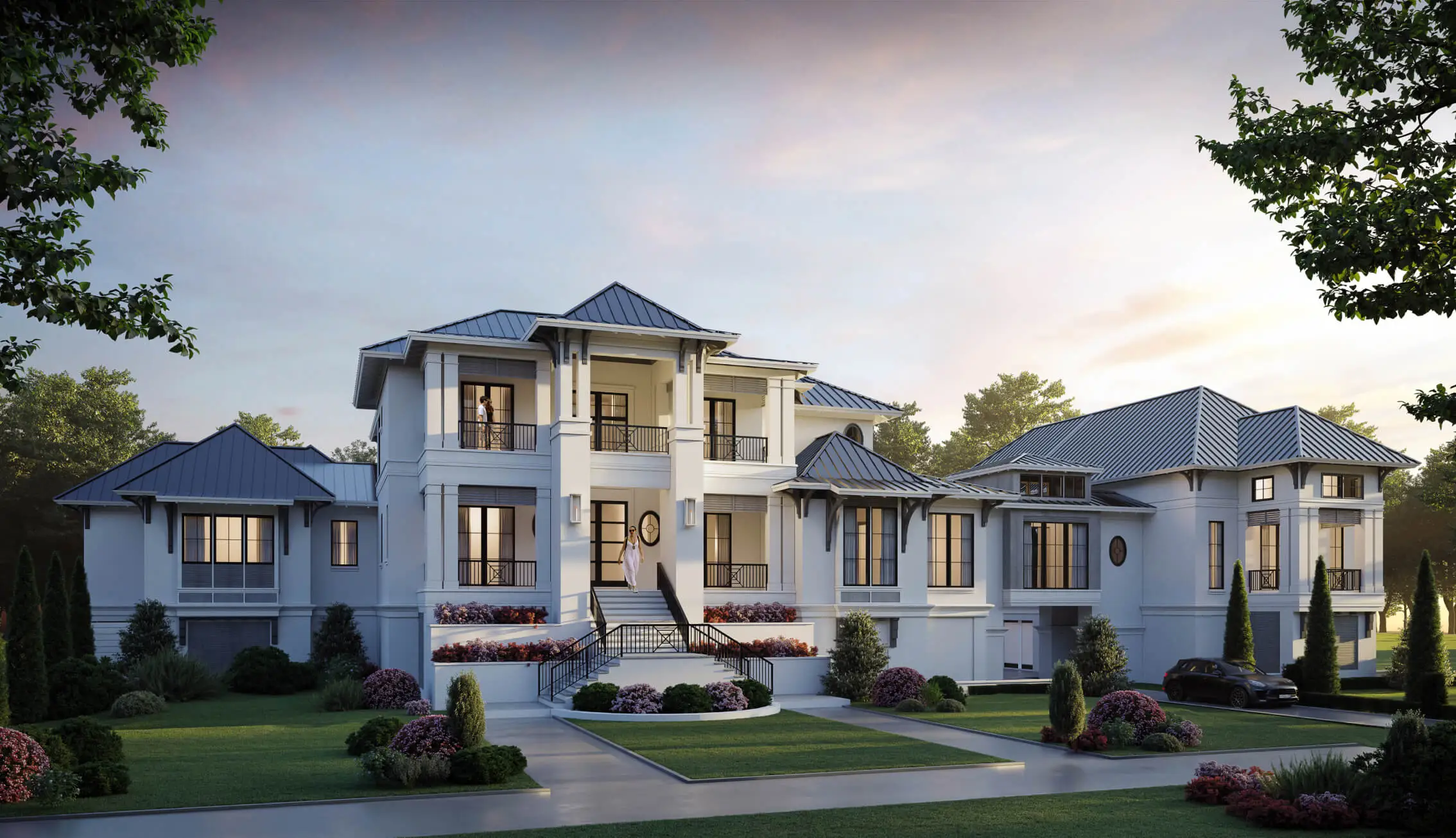
AI is everywhere now, and architecture design is no exception. Every ad pushes the next magic AI tool for architecture design. We ran our own research, and here's the unbiased guide.
My Instagram feed is drowning in "must-try" architecture design AI tools. Every fourth post is an ad promising photorealistic results in seconds. Run a plain Google search for "AI architecture rendering" and the top 10 is a traffic jam of apps claiming everything from instant renders to space planning to one-tap room decoration.
Reality check: nobody has the time (or the budget) to test them all.
So we took a different route. We polled the archviz community on Reddit, then layered in our own hands-on experience. The result is a practical, non-biased guide to the AI architectural design tools that actually move the needle, not the ones that just photograph well in an ad.
The good news? Most artists told us the same thing. AI isn't taking their jobs; it's taking the busywork, freeing them to push the design further. So if your feed looks anything like mine, and you'd rather not spend a month auditioning software, let's get into it.
AI architecture design: Where we stand in 2026
Adoption isn't the question anymore. Per the Chaos State of ArchViz report, roughly 60% of firms now actively use AI, and 86% of them report real time savings. AI renderings are turning up in pitch decks, listings, and concept reviews everywhere you look. It's everywhere.
Trust is another story. Only 17% of users say AI output is clean enough to use without serious oversight, and seven in ten say it captures their intent just "somewhat well."
So where does AI for architectural design actually break down? It keeps coming back to the same five cracks:
- Consistency across views. Generative AI, for example, is fine for a single hero shot, but ask it for the same room from a slightly different angle and details drift, and a second floor that rearranges itself, surroundings that change from frame to frame. Gen AI tools are good for ideation, not to tweak elements in numerous revisions. That's the opposite of how client work runs.
- Accuracy it can't actually reason about. AI fakes realism without understanding it. Sometimes, it produces roofs that don't make structural sense, materials in places they'd never go, window assemblies it simply invented. The untrained eye misses it; a trained one spots it a mile away.
- Buildability. Pure text-to-image drifts away from what can actually be constructed. It looks great on Instagram and collapses the moment someone needs to pour concrete from it.
- It automates the cheap 8%, not the expensive 80%. The early concept phase is a tiny slice of a real project's hours, the bulk goes into details and construction documentation. AI targets the fun, fast part at the front and barely touches the heavy, repetitive work where the time actually lives.
So we’re still a long way from one tool that spits out finished, client-grade visuals from a prompt. And just as far from one that makes the many-rounds process of getting there feel effortless. A fully AI-generated archviz that holds up under a trained eye isn't here, but we might be close.
But here's what actually matters: AI for architects was never just about rendering. Fixating on "can AI replace rendering experts?" misses the point, because AI rendering architecture workflows are only one slice of what's on offer. The real value is an array of tools, each sharp at a specific stage of 3D asset production — think capturing a site, drafting a plan, spinning up concepts, polishing a final, cutting a listing video.
That’s why the list we’ve built isn’t "the best AI renderer," but the tools we think genuinely streamline an architect's work, sorted by where they actually fit.
The AI architecture design software stack worth knowing in 2026
Once again, here we aren’t ranking ten architecture design AI apps against each other. We're walking you through the pipeline, stage by stage, and dropping each tool where it belongs. A real AI architectural design setup is a stack, not a single subscription.
Quick map before we dive in:
Stage 0: Site capture / as-built
Before you render anything, you need to know what's actually there. Polycam turns an iPhone into a measuring tool: walk a space, scan it, and a few minutes later you've got a dimensioned 3D mesh and auto-generated 2D floor plans.
Where it earns its keep:
- As-built surveys without the tape measure. This is the big one. For renovation and retrofit work, a phone walk-through replaces hours of manual measuring and the inevitable "wait, we mis-measured that alcove" return trip. According to users’ feedback, accuracy lands around 1-5 cm, which is plenty for design reference, not for legal survey-grade certification, so don't stamp drawings with it.
- A real base layer for your CAD/BIM model. You can export to OBJ, FBX, and GLTF for SketchUp and Rhino, plus point clouds for Revit, which means you can model your new design on top of geometry that actually exists, instead of trusting a decade-old drawing set that may not match the building.
- Capturing detail you'd hate to model by hand. Photogrammetry mode (just photos, no LiDAR) is great at object scale (for example, to capture a façade ornament, a cornice profile, or a one-off piece of existing furniture); you can scan it once, drop it in your scene, and skip the modeling entirely.
- Context and client alignment. The tool lets you scan the streetscape or neighboring building so your massing study sits in real surroundings; you can share a "here's what exists today" 3D scan to get everyone on the same page before design even starts.
The catch: it's room-scale and reference-grade, not survey-grade, and LiDAR needs an iPhone 12 Pro or newer.
Pricing: free (limited), Pro ~$12-15/mo, Business ~$36/seat/mo.
Best for: renovation and retrofit teams who need accurate existing conditions, fast.
Stage 1: Drafting / space planning
Rayon is a browser-based CAD tool built for the part of the job that happens before rendering: drawing plans, planning space, laying out furniture. Think Figma, but for floor plans. It’s real-time, collaborative, and quietly using AI to skip the tedious bits.
Where it earns its keep:
- Killing the AutoCAD-plus-InDesign two-step. Users report plans coming together 2-3x faster, partly because layout and presentation live in the same place. No more drafting in one app and prettifying in another.
- Turning a PDF back into an editable plan. You can hand the tool a flat PDF and it traces it into editable geometry; which is gold when a client sends a plan with no source file, which is always.
- Multiplayer drafting. Two designers in the same plan at once, like a shared doc. For studios splitting work across a team, that's the headline.
- A 4,000-block library plus AI asset generation, so you're not hunting for a sofa symbol for ten minutes.
The catch: the AI here is assistive, not a renderer; it speeds up drawing, it doesn't make pretty pictures.and it's 2D-focused with weekly-capped AI credits.
Pricing: free, Pro $21/mo, Team $38/editor/mo.
Best for: interior designers ready to ditch the AutoCAD + InDesign combo.
Stage 2a: Conceptualizing
This is the stage the ads are screaming about: sketch or model in, photoreal-ish image out. In seconds. This is what most people picture when they hear "ai architectural rendering." Two tools worth knowing, each with a different personality.
Rendair AI
Rendair AI takes a sketch, CAD view, or 3D model and turns it into a photoreal concept in seconds, with a real feel for lighting and atmosphere. It fits SketchUp and Revit workflows and does virtual staging too. In practice, it's the "show me five façade directions by tomorrow morning" tool. You get fast, client-facing concepts that win early buy-in.
The catch: this architectural design AI tool might easily invent elements (a window here, a door there), it's shaky on exact materials (don't expect a specific RAL color), and interiors can drift into uncanny territory.
Pricing: Student €7.60, Creator €15, Pro €39 (1,500 credits), Team €200.
Best for: small firms and independent experts needing fast concepts clients can react to.
Nano Banana Pro
Nano Banana Pro is a real wildcard of architectural design AI. This Google's famous model produces some of the most architecturally coherent AI renders out there: accurate materials, correct perspective, and text rendering good enough for real signage or labels.
The catch: It's a general model, not archviz-tuned, so there’s no camera-lock, no SketchUp or Revit plugin, and a mandatory SynthID watermark on every output. Another trap is accessibility. The frictionless demos you see on YouTube are not even close to what you get as the output. In fact, you will have to reiterate and prompt the tools to tweak the render to achieve the desired result. And this means credits. And you run out of those pretty fast.
Pricing: so, there are three real ways in, each with a catch. Let’s take a closer look at pricing for each option now.
- Google AI Studio (free with credits) gives you metered access with no daily ceiling, but it means setting up a billed Google Cloud project and usually writing a small script around it. It's a developer route wearing a friendly name.
- Gemini AI Pro subscription ($19.99/mo) gets you a no-code interface, but the "100 images/day" cap is optimistic, real use lands closer to 20-80, and every throwaway attempt counts against it, so a day's quota can shrink to a handful of keepers.
- Creative aggregators like Lovart bundle it into a wider design workspace on credits (~$72/mo for 11,000), which sounds generous until one complex project eats thousands; this option is worth it only if you're actually using their surrounding toolkit, not as a cheaper image tap.
The best option: All in all, Gemini is excellent for early-stage idea exploration during client negotiations, as well as for aligning on creative direction.
When it comes to accessing the tool in the most cost-effective way, platforms like Lovart can be a strong option (especially if your firm runs a full production pipeline). In that case, you get a more robust toolkit for creating a wide range of real estate marketing assets. For occasional use and quick iterations, however, a standard Gemini subscription is the easiest entry point.
Stage 2b: Real-time final rendering
If Stage 2a is about fast concepts, D5 is where you produce the client-ready final. It's a real-time path tracer with AI features baked in, and it's the closest thing to a consensus workhorse in our research and across the community threads.
Where it earns its keep:
- The time saver. Many users reported final stills that took 12-18 hours in V-Ray or Corona dropping to 1-2 hours in D5. That's not a typo, and it's why people in our research kept saying they "said bye-bye to V-Ray."
- Live-sync with SketchUp and Revit. You can edit your model as usual (test different lighting setups and materials), and the render will be updated in real time, so no re-exporting needed.
- D5 Lite for the messy early stage. Multiple pros specifically flagged this: you can run D5 Lite inside SketchUp to test lighting and feel on an incomplete model, then move to full D5 Render for finals.
- A 13,000-plus asset library and a built-in AI atmosphere and design assistant for skies, weather, and quick material moods.
The catch: Windows plus a dedicated GPU only (no Mac), the cloud-render credits are a variable add-on cost that can creep, and big scenes will lean on your hardware.
Pricing: Community free (watermark, 1080p), Pro ~$30-38/mo, Teams ~$708/seat/yr.
Best for: the studio workhorse for client-ready final stills and animation.
Stage 3: Post-production
We already talked briefly about creative aggregators, and Magnific AI is another platform like this that’s worth trying. Magnific AI Image Upscaler is a part of the Magnific creative platform and is a finishing “specialist” we often use. It doesn't upscale so much as reimagine, inventing plausible detail as it pushes an image to 16X or 10,000 pixels. When used right, it makes a render look more expensive than it has any right to.
Where it earns its keep:
- Rescuing a render that's sharp in concept but soft in detail. Feed it a finished image and it adds micro-texture (like fabric weave, material grain, foliage detail); that would take hours by hand in Photoshop.
- Print-resolution output from a smaller render, so you're not burning render hours computing massive resolutions for a client's lobby print.
The catch (and it's a real one): Magnific was originally developed by the team behind Freepik, and its main focus has always been image and video generation. If your firm invests heavily in marketing or media production, it could be a useful addition to the toolkit. For occasional use (such as experimenting with special effects or adding extra detail to a render), it can become relatively expensive. There’s no free trial or refund policy, credits expire each month, and because the tool generates new detail rather than simply enhancing existing pixels, it can sometimes hallucinate artifacts. In practice, getting the result you want often involves a bit of trial and error, which can consume credits fairly quickly.
Pricing: standalone Premium at ~$14, Premium+ at ~$30, and Pro at $197/mo but billed annually.
Best for: studios and freelancers with a render already in hand who need to push it from 'good' to 'deal-won' fast; in other words, the finishing touch for anyone whose deliverables have to survive a full-screen client review.
Stage 4: Marketing
The last stage is motion, and the three tools here serve genuinely different buyers.
Runway
Runway is our personal top choice. Its standout is editing existing footage by text. You can change the lighting, add rain, alter a scene without re-rendering (the Aleph feature). The biggest advantage is that everything is wrapped in the cleanest pro UI in the category, with Veo and Kling models bundled in.
The catch: credits don't roll over (10-15% waste from failed generations is vendor-acknowledged), queues run 10-20 minutes even on paid tiers, and text-in-video is unreliable. Plus, the learning curve is steep.
Pricing: free (125 one-time credits), Standard $12/mo, Pro $28/mo, Max ~$76-95/mo.
Best for: studios doing bespoke, cinematic video at volume who have someone who can actually drive it.
Higgsfield AI
While Higgsfield’s main audience might well be ad creators and marketing teams, 3D rendering studios and real estate agents can benefit from it as well when it comes to value-added services. The platform provides cinematic camera-motion presets on the cheap, 15-plus models (Sora 2, Veo, Kling) under one bill, built for "director-grade" motion in a Reel.
The catch: hidden per-model credit math; after iterating, a mid tier can yield as few as 3-8 usable premium clips a month, and the "365-day unlimited" mostly covers image models.
Pricing: Starter $15/mo, Plus ~$34-49/mo, Ultra ~$84-129/mo.
Best for: social and ad creators chasing slick motion fast.
Tour Estate AI
Tour Estate AI is the tool real-estate agents can actually run themselves. Photos in, cinematic listing video out, zero learning curve, with MLS/Zillow/Airbnb import and vertical Reels/TikTok output. It's predictable and cheap for what it does.
The catch: output looks templated, and it only makes listing-shaped videos, not bespoke architectural storytelling.
Pricing: free (1 video/mo), Starter $200/yr, Studio $990/yr (watermark-free, branded).
Best for: agents and marketers who want a finished listing reel without hiring anyone.
So what does the architectural design AI stack actually cost?
Here's the part the "AI is so cheap" crowd skips. Where AI genuinely wins is concept and iteration: a single Rendair AI seat spits out hundreds of concept variations for less than the cost of one freelance render. For "show me five directions by tomorrow," the math isn't close. Here AI wins outright.
Where the cheap story quietly breaks down is final deliverables, for three reasons:
- Stacking: a client-ready pipeline is rarely one tool. You need capture (~$15) + ideate (~$20) + render (~$35) + upscale (~$14) + video (~$28) lands around $100-150/month committed before a single billable project, plus variable credits on top.
- The burn tax: credit tools charge for attempts, not only seats (for example, 3-5 generations per usable clip, and credits don't roll over, so your real cost-per-output is well above the initial price tag).
- The labor doesn't vanish, it moves: every source, including the vendors' own review pages, says that AI invents elements, fumbles materials, produces uncanny interiors, and a skilled human still catches and fixes it. You don't remove the 3D artist from the equation. You change what they do.
So let's be honest: most of you don't actually want to spend the next month auditioning tens of apps to find the seams. You want finished, accurate, on-time renders that close deals.
That's literally our day job. We use AI where it earns its keep but a human PM and a trained artist still own the parts that decide whether a client says yes.
If you'd rather skip the AI bake-off and just get the work done, our 3D architectural rendering services deliver studio-level visuals at roughly freelance rates, with a PM who doesn't disappear for two weeks. Want proof first? Browse the 3D rendering portfolio, or contact us for a free same-day estimate and we'll tell you exactly what your project takes.
3.png)
2.png)